03 / RAM
Memory: Is 32GB Enough?
16GB×2, DDR5-6000, CL28 — all those numbers, explained in one go.
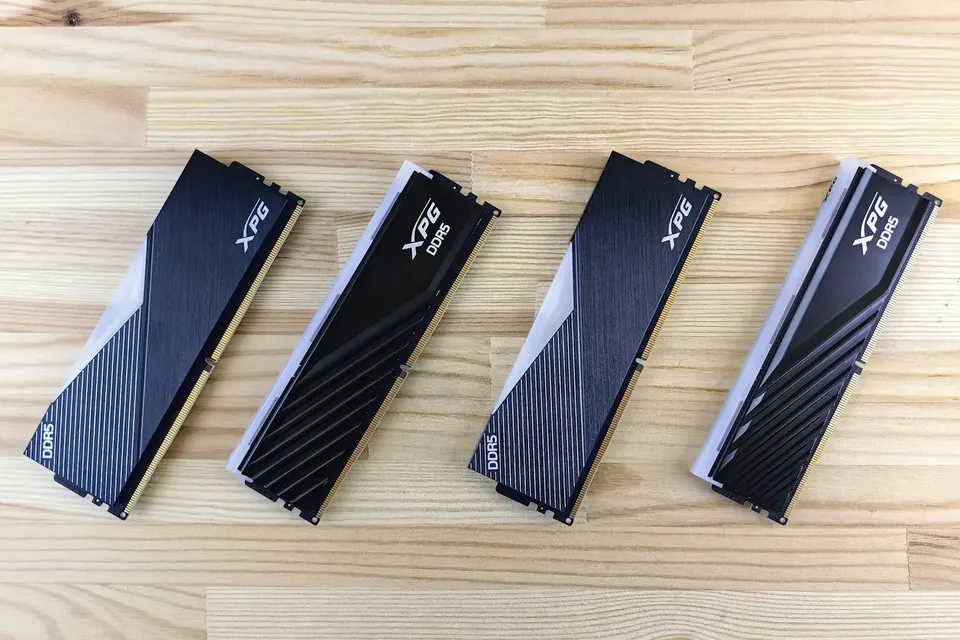
Get enough capacity first, then look at speed and timings. A matched, compatible and stable kit beats chasing ever-higher speeds.
Memory is your PC’s workbench
Memory holds the games, software and data that are running right now. It’s very fast, but it’s wiped as soon as the power goes off; anything kept long term lives on the SSD. Think of memory as the workbench and the SSD as the warehouse.
If the workbench is too small, the system has to keep shuffling data to and from the far slower drive, and switching apps or gaming starts to feel sluggish. Once you have enough capacity, though, adding more won’t raise your frame rate.
How to read 16GB×2
16GB×2 means two 16GB modules, 32GB in total; 24GB×2 makes 48GB and 32GB×2 makes 64GB. A single 16GB module is also labelled 16GB, but its total capacity and channel configuration are quite different.
Mainstream desktop platforms are dual-channel: install a matched pair in the slots your motherboard recommends to get the full bandwidth. Although each DDR5 module is split into sub-channels internally, a single module doesn’t give you a dual-channel effect. Follow your motherboard manual for which two slots to use.
DDR5-6000 and CL28
DDR5 is the memory generation, and it won’t fit a motherboard that only supports DDR4. The “6000MHz” you often see on listings is more accurately 6000 MT/s — the higher the number, the greater the theoretical transfer rate.
CL is CAS latency. At the same speed, lower CL is better — 6000 CL28 is slightly quicker than 6000 CL32, for example. Across different speeds, you can roughly estimate nanoseconds with CL × 2000 ÷ MT/s: 6000 CL28 works out at about 9.3ns. But that’s only one of several latencies, not the system’s real-world latency.
EXPO, XMP and stability
EXPO and XMP are preset memory profiles, which you usually need to enable in the BIOS to reach the rated speed. They’re essentially a form of overclocking, so whether they run stably depends on the CPU, motherboard, BIOS and the memory itself.
Don’t expect every platform to run the top speed stably, and try not to mix different kits. With all four slots filled or very large capacities, you may need to lower the speed. For peace of mind, choose a matched kit of the right capacity that appears on your motherboard’s compatibility list.
This guide offers general buying advice. Examples reference our hardware catalogue and do not reflect live stock or guarantee the performance of any specific model. Manufacturer specifications govern compatibility; prices and available options are as shown in the build configurator.